QMK keymap for the Smallcat
Introduction
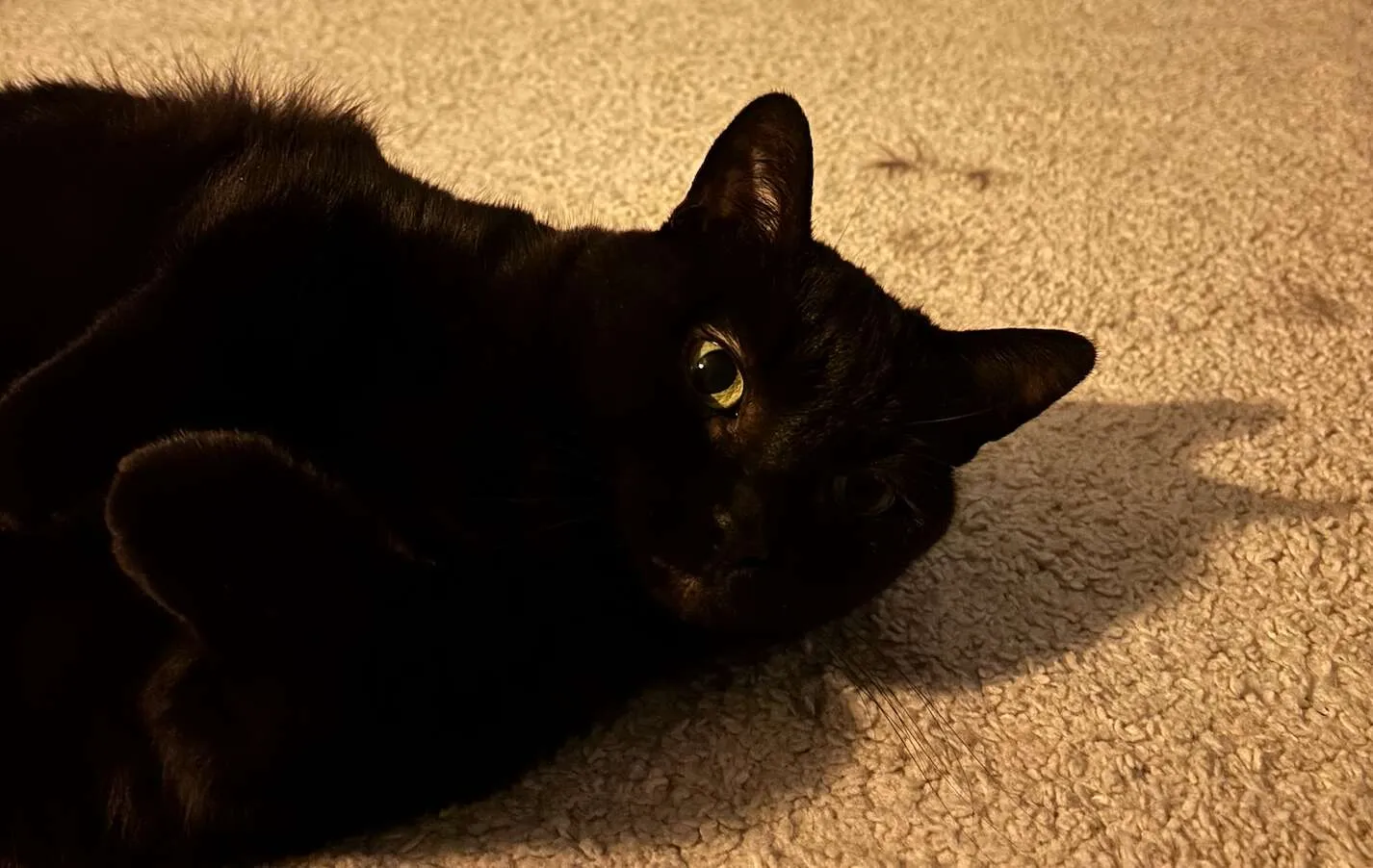
The Smallcat (4f5801b) is a 26-key keyboard I designed. Named after my cat Lila, who acts as a muse through a silkscreen on the PCB, it’s a diodeless, column-staggered keyboard using low-profile Choc switches.
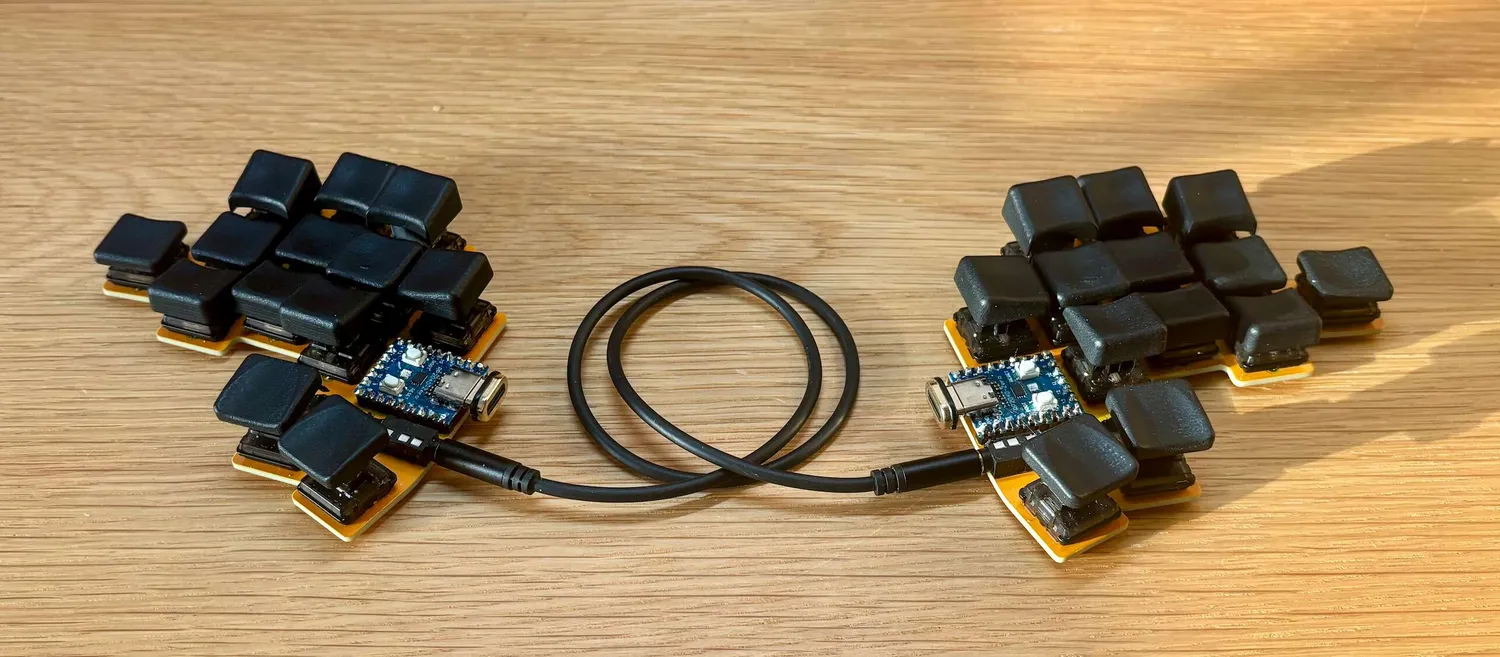
It comes in two versions: split (two RP2040-Zero controllers connected via TRRS) and unibody (single RP2040 Pro Micro).
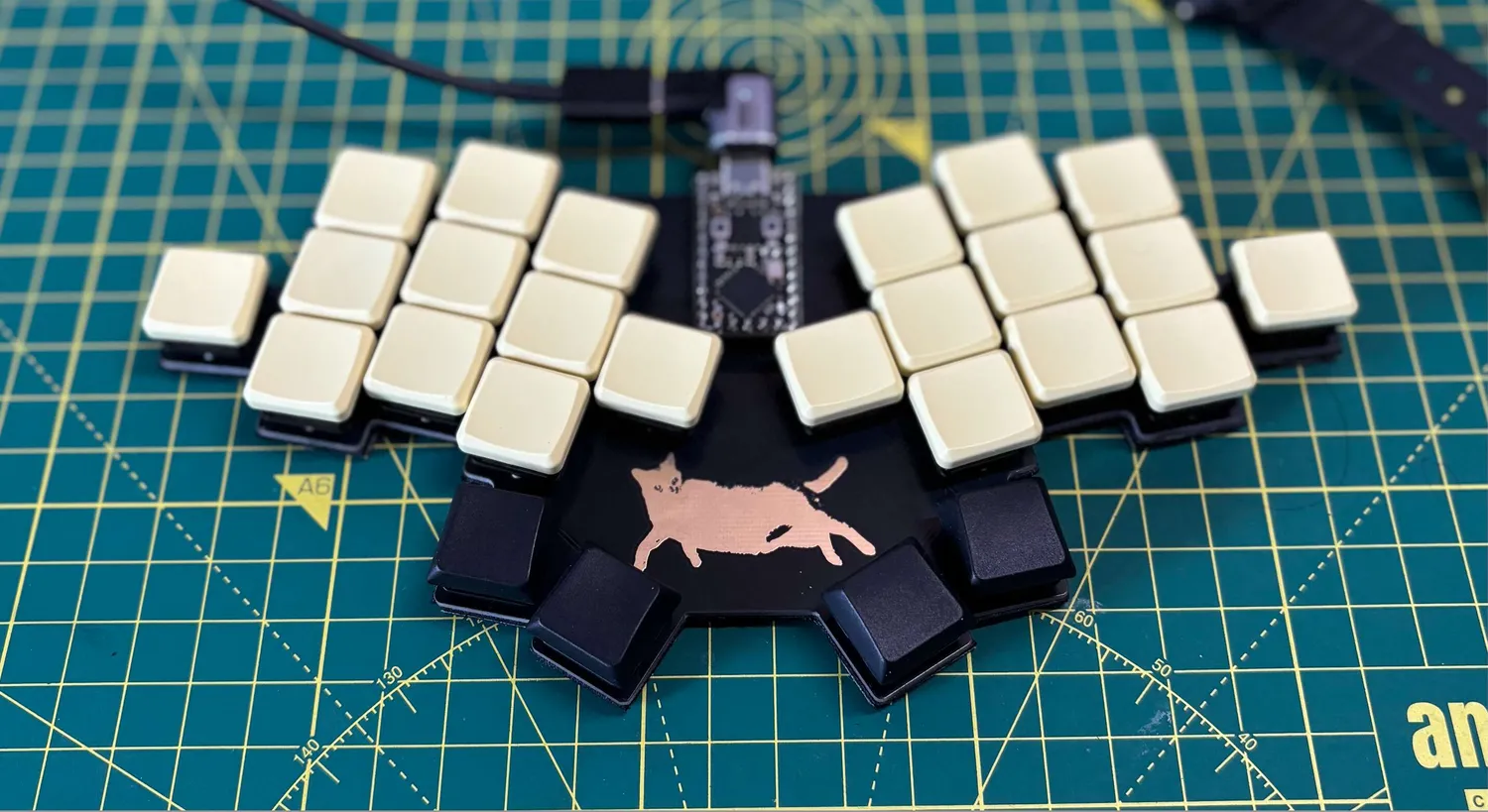
26 keys is not a lot. To make it work, the QMK keymap (d9dc6c4) relies heavily on layers, combos, and tap-hold keys. This post walks through some of the interesting design choices.
I. The layout
The letter arrangement is heavily customized for my workflow and optimized for English. I started with Colemak-DH, then moved to Canary, then Graphite. Eventually I decided to create my own layout, borrowing ideas from all three.
The layout prioritizes minimizing pinky strain. Every key on the home row and bottom row does double duty through tap-hold:
     +----+----+----+                    +----+----+----+
     | L  | D  | P  |                    | F  | O  | U  |
+----+----+----+UNI-+----+          +----+----+----+----+----+
| W  | R  | T  | S  | G  |          | Y  | N  | A  | E  | I  |
+LSft+SYM2+NUM-+NAV-+ROS-+          +----+SYS-+----+SYM2+RSft+
     | K  | M  | C  |                    | H  | ,  | .  |
     +LCtl+LAlt+LGui+                    +RGui+RAlt+RCtl+
               +----+----+    +----+----+
               |Tab |Spc |    |Bsp |Ent |
               +EDIT+FUN-+    +SYS-+SYM-+
Holding a key activates its layer. Tapping types the letter. This is
achieved through QMK's LT() and MT()
macros:
#define K_LH2 LT(SYM2, KC_R)  // hold: SYM2 layer, tap: R
#define K_LH3 LT(NUM, KC_T)   // hold: NUM layer, tap: T
#define K_LB1 MT(MOD_LCTL, KC_K) // hold: Ctrl, tap: KThe keymap has 11 (!) layers total. Here's what each one does:
- NUM (hold T), number pad on the right hand with 0-9, a triple zero for large numbers, and decimal/comma.
- SYM (hold Enter), symbols like @, $, %, =, and programming operators. The arrow operator (->) lives here too.
- SYM2 (hold R or E), same symbols as SYM but with home row letters passed through, allowing fast rolls without fighting the layer system.
- NAV (hold S), arrow keys, brackets, and Home/End navigation.
- NAV2 (hold S + T), word-level navigation and selection. Move by word, select words forward/backward, select entire lines.
- EDIT (hold Tab), clipboard operations (cut, copy, paste, undo, redo), find, and select all.
- FUN (hold Space), function keys F1-F12. F10-F12 are accessed via combos on F7-F9.
- SYS (hold N or Backspace), mouse control, media playback, volume, brightness, and zoom.
- ROS (hold G), a
specialized layer for controlling robots via ROS2
teleop_twist_keyboard. - UNI (hold P), French accented characters and special symbols like guillemets.
Some layers have multiple access points. SYS can be activated by holding N (home row) or Backspace (thumb). SYM2 can be activated by holding R or E. This flexibility means you can choose whichever finger is free, and it makes certain key combinations more comfortable depending on which hand is doing the work.
II. Modular layer definitions
With 11 layers, keeping the keymap maintainable is important. The config uses a macro-based system that splits each layer into left and right hand definitions, making it easy to reason about and modify.
Each layer is defined as 8 small macros, one per hand and row:
// BASE layer: left hand
#define BASE_L_TOP   K_LT1, K_LT2, K_LT3
#define BASE_L_HOME  K_LH1, K_LH2, K_LH3, K_LH4, K_LH5
#define BASE_L_BOT   K_LB1, K_LB2, K_LB3
#define BASE_L_THUMB K_LTH1, K_LTH2

// BASE layer: right hand
#define BASE_R_TOP   K_RT1, K_RT2, K_RT3
#define BASE_R_HOME  K_RH1, K_RH2, K_RH3, K_RH4, K_RH5
#define BASE_R_BOT   K_RB1, K_RB2, K_RB3
#define BASE_R_THUMB K_RTH1, K_RTH2A LAYER_DEF macro assembles these parts into a full
layer:
#define LAYOUT_wrapper(...) LAYOUT(__VA_ARGS__)
#define LAYER_DEF(layer) LAYOUT_wrapper( \
    layer##_L_TOP,   layer##_R_TOP, \
    layer##_L_HOME,  layer##_R_HOME, \
    layer##_L_BOT,   layer##_R_BOT, \
    layer##_L_THUMB, layer##_R_THUMB \
)The ## token pasting operator concatenates the layer
name with each suffix. So LAYER_DEF(BASE) expands to use
BASE_L_TOP, BASE_R_TOP, and so on. The keymap
array becomes concise:
const uint16_t PROGMEM keymaps[][MATRIX_ROWS][MATRIX_COLS] = {
    [BASE] = LAYER_DEF(BASE),
    [NUM]  = LAYER_DEF(NUM),
    [SYM]  = LAYER_DEF(SYM),
    // ... and so on
};This pattern has a few nice properties. First, you can reuse parts across layers. The SYM2 layer shares most keys with SYM:
#define SYM2_L_TOP  SYM_L_TOP   // reuse SYM's top row
#define SYM2_L_BOT  SYM_L_BOT   // reuse SYM's bottom row
#define SYM2_L_HOME S(KC_8), KC_R, KC_AMPR, KC_PIPE, S(KC_5) // customSecond, the key aliases follow a naming convention that makes the
layout self-documenting. K_LH2 means "left hand, home row,
2nd key". K_RT3 means "right hand, top row, 3rd key". The
pattern is K_[L|R][T|H|B|TH][1-5] where T is top, H is
home, B is bottom, and TH is thumb. This makes it easy to reason about
key positions without counting indices.
These aliases also encode modifiers and layer-taps at the key level, not the layer level. This keeps layer definitions clean and ensures combos work consistently since they reference positions, not raw keycodes:
#define K_LH1 MT(MOD_LSFT, KC_W)   // hold: Shift, tap: W
#define K_LH2 LT(SYM2, KC_R)       // hold: SYM2, tap: R
#define K_LTH1 LT(EDIT, KC_TAB) // hold: EDIT, tap: TabAdding a new layer means defining 8 small macros and one
LAYER_DEF line. The same definitions work across both
Smallcat variants (split and unibody) since they share the same
smallwat3r.c file.
III. Combos for missing keys
With only 26 keys, several letters are missing: Z,
Q, B, X, V, J,
some of the least used in English. B and
V are more common, but their combos are near the home row for
easy access, and the V combo feels natural. Combos are mostly
positioned on keys that don't repeat, to avoid accidental activations.
Combos are defined in combos.def, a special file that QMK
preprocesses to generate the boilerplate code for each combo
automatically. Here is an example:
COMB(C_BL_Z, KC_Z, K_LT1, K_LT2, K_LT3)  // L+D+P = Z
COMB(C_BL_Q, KC_Q, K_LT2, K_LT3)         // D+P = Q
COMB(C_BL_B, KC_B, K_LH2, K_LH3)         // R+T = B
// ...Beyond missing letters, combos handle common digraphs and text shortcuts:
SUBS(C_BL_TH, "th", K_LH3, K_LH4)         // T+S = "th"
SUBS(C_BL_WH, "wh", K_LH1, K_LH4)         // W+S = "wh"
SUBS(C_BR_ING, "ing", K_RH2, K_RH5)       // N+I = "ing"
SUBS(C_BL_WC, ".com", K_LH1, K_LB3)       // W+C = ".com"
SUBS(C_BL_WP, "@gmail.com", K_LH1, K_LT3) // W+P = "@gmail.com"
// ...Brackets also live on combos, positioned to mirror each other:
L+P = [    F+U = ]
K+C = (    H+. = )
IV. The SYM2 layer trick
One subtle problem with layer-tap keys: if you hold R to access SYM2 and then tap E for a symbol, you can't "roll" through R-E quickly because releasing R first would cancel the layer.
The solution is SYM2, a symbol layer that passes through the home row letters. When you hold R and tap A, you get lowercase 'a', not a symbol:
// SYM2: symbols with home row passthrough for rolls
#define SYM2_R_HOME S(KC_1), S(KC_SCLN), KC_A, KC_E, S(KC_BSLS)This allows fast typing without fighting the layer system.
V. Custom tap-hold behavior
Some keys need special tap-hold logic that QMK doesn't provide out of the box. The R+S combo is a good example:
- Tap: types "sh"
- Hold: activates Ctrl+Gui (useful for window management)
A small struct tracks the key state:
typedef struct {
    uint16_t keycode;
    uint16_t time;
} tap_hold_state_t;

static tap_hold_state_t tap_hold_state = {0};On press, the keycode and timestamp are stored, and the hold modifier is registered immediately:
case MK_RS:
    tap_hold_state.keycode = keycode;
    tap_hold_state.time = record->event.time;
    register_mods(MOD_BIT(KC_LCTL) | MOD_BIT(KC_LGUI));
return false;On release, the elapsed time determines whether it was a tap or hold.
If the time since key press is less than TAPPING_TERM
(220ms), it's a tap:
bool is_tap = TIMER_DIFF_16(record->event.time, tap_hold_state.time) < TAPPING_TERM;

case MK_RS:
    unregister_mods(MOD_BIT(KC_LCTL) | MOD_BIT(KC_LGUI));
    if (is_tap) SEND_STRING("sh");
break;VI. Chordal hold
A common frustration with home-row mods is accidental activation when typing quickly. QMK's chordal hold feature helps, it only triggers a hold if the next key is on the opposite hand:
const char chordal_hold_layout[MATRIX_ROWS][MATRIX_COLS] PROGMEM =
    LAYOUT(
             'L', 'L', 'L',            'R', 'R', 'R',
        'L', 'L', 'L', 'L', 'L',  'R', 'R', 'R', 'R', 'R',
             'L', 'L', 'L',            'R', 'R', 'R',
                       '*', '*',  '*', '*'
);The 'L' and 'R' markers tell QMK which hand
each key belongs to. Thumbs are marked '*' to work with
either hand.
VII. Per-combo timing
Not all combos are equal. Some key pairs are easier to hit together than others. The config defines different timing windows:
#define COMBO_TERM 35
#define COMBO_TERM_RELAXED 50
#define COMBO_TERM_TIGHT 20Brackets get tight timing (20ms) because false positives are annoying. Digraphs like "th" get relaxed timing (50ms) because they're typed in sequence:
uint16_t get_combo_term(uint16_t combo_index, combo_t *combo) {
    switch (combo_index) {
        case C_BL_TH:
        case C_BL_WH:
            return COMBO_TERM_RELAXED;
        case C_BL_LBRC:
        case C_BR_RBRC:
            return COMBO_TERM_TIGHT;
        // ...
    }
    return COMBO_TERM;
}VIII. Unicode for French
The UNI layer (hold P) provides French accented characters. QMK's unicode feature maps key presses to unicode code points:
const uint32_t PROGMEM unicode_map[] = {
    [UN_E_ACUTE] = 0x00E9,      // é
    [UN_E_GRAVE] = 0x00E8,      // è
    [UN_C_CEDILLA] = 0x00E7,    // ç
    [UN_OE_LIGATURE] = 0x0153,  // œ
    // ...
};The keyboard auto-detects the OS and switches unicode input mode:
switch (detected_os) {
    case OS_MACOS:
        set_unicode_input_mode(UNICODE_MODE_MACOS);
        break;
    case OS_LINUX:
        set_unicode_input_mode(UNICODE_MODE_LINUX);
        break;
}IX. Custom features
The keymap uses several custom features, some written from scratch and some adapted from Pascal Getreuer's excellent QMK extensions.
a) OS-aware keys
Common operations like copy, paste, undo, and word navigation use
different modifiers on macOS (Cmd) vs Linux/Windows (Ctrl). The
os_keys feature detects the OS and sends the right
shortcut. Covers clipboard, navigation, zoom, find, and more.
case OS_COPY:
    OS_TAP(G(KC_C), C(KC_C));  // Cmd+C on Mac, Ctrl+C elsewhere
case OS_L_W:
OS_REPEAT(A(KC_LEFT), C(KC_LEFT)); // word leftb) Select word
From Pascal Getreuer’s collection. Select words and lines with a single key, hold to extend the selection. Handles OS differences internally.
case MK_SEL_BACK:
    select_word_register('B');  // select word backward
case MK_SEL_LINE:
select_word_register('L'); // select entire linec) Sentence case
Another Getreuer feature. Automatically capitalizes the first letter after sentence-ending punctuation. Useful for prose, toggled off for code.
d) Autocorrect
QMK’s built-in feature that fixes common typos as you type. A custom
dictionary in autocorrection_dict.txt gets compiled into a
binary trie via make autocorrect. A : prefix
or suffix marks a word boundary, preventing false corrections within
longer words. Sample entries:
becuase    -> because
definately -> definitely
seperate   -> separate
wierd      -> weird
:ture      -> true
:wont:     -> won't
Without the leading :, ture -> true
would incorrectly turn “feature” into “featrue”. :wont:
requires word breaks on both sides, so “unwonted” won’t become
“unwon’ted”.
e) LED/RGB indicator
The onboard LED or RGB (depending on the microcontroller) provides visual feedback: solid on for Caps Word, slow blink for One-Shot Shift, double flash when autocorrect applies a correction, and three blinks on startup to indicate connection. QMK provides hooks to trigger these states:
bool caps_word_set_user(bool active) {
    caps_word_active = active;
    indicator_set(active);
    return true;
}

bool apply_autocorrect(uint8_t backspaces, const char *str, char *typo, ...) {
    led_indicator_flash(2);  // double flash on correction
    return true;
}X. Light switches
With all these layers and combos, key feel matters. I use Kailh Ambients Nocturnal switches, 20g actuation force. They're absurdly light, which helps when you're pressing multiple keys for combos. They're also very silent, making them suitable for shared workspaces.
~~~
Wrapping up
This keymap is in constant evolution. Being able to shape how I communicate with my machine, fully customised and optimised to my workflow, is truly amazing.
Links
- Smallcat keyboard (4f5801b), hardware files and build guide
- My QMK keymap (d9dc6c4), full source code
- QMK firmware, the open source keyboard firmware